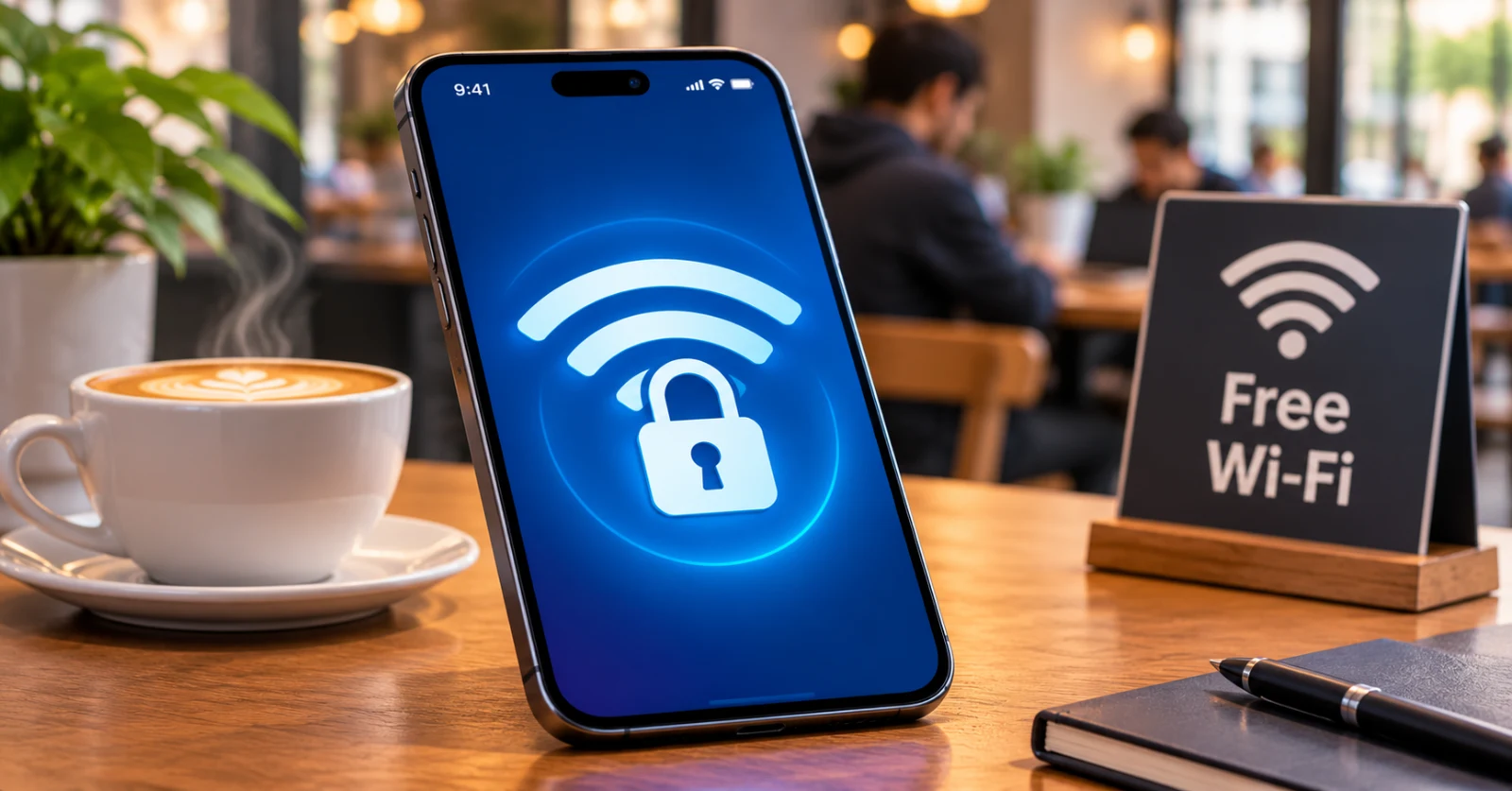
Free Wi-Fi is everywhere: cafés, airports, hotels, libraries, and shopping malls. It saves mobile data and keeps us connected, but open networks are also one of the easiest places for attackers to snoop on traffic or trick people into connecting to fake hotspots. The good news is that a few simple habits remove most of the risk.
Why Public Wi-Fi Is Risky
On a home network, you know who set it up and who has the password. On a public network, anyone can join, including people with bad intentions. The most common threats are:
- Evil twin hotspots: a fake network named like the real one (for example, "Cafe_Free_WiFi") that captures whatever you send through it.
- Traffic snooping: on poorly secured networks, unencrypted data can be read by others on the same network.
- Man-in-the-middle attacks: an attacker positions themselves between you and the website you are visiting.
- Malicious captive portals: login pages that ask for more information than a real Wi-Fi sign-in would.
1. Confirm the Exact Network Name
Before connecting, ask staff for the exact network name. Attackers often create hotspots with near-identical names. If two similar networks appear, do not guess.
2. Look for HTTPS on Every Site
The padlock icon and "https://" mean the connection between your browser and the website is encrypted. Never enter passwords, card details, or personal information on a page that shows a "Not secure" warning. Most modern browsers also warn you before loading such pages, so take those warnings seriously.
3. Turn Off Automatic Connection
Phones and laptops remember networks and reconnect automatically. Attackers exploit this by broadcasting a familiar network name. Disable auto-join for open networks and remove old networks you no longer use.
4. Turn Off File Sharing and AirDrop-Style Discovery
When you are on a public network, set your device's network profile to "Public" (on Windows) and switch off file sharing and device discovery. On phones, set nearby sharing to contacts only or turn it off while you are out.
5. Avoid Sensitive Tasks When Possible
Online banking, tax filing, and entering card details are best done on your mobile data connection or a trusted home network. If you need to check something urgent, use mobile data or a personal hotspot instead.
6. Use Two-Factor Authentication
Even if a password is exposed, two-factor authentication (2FA) adds a second barrier. Prefer an authenticator app or a hardware key over SMS codes where possible. Enable it on email, banking, social media, and cloud storage first, because email access can be used to reset almost every other account.
7. Keep Your Software Updated
Many attacks rely on known bugs that have already been fixed. Updating your operating system, browser, and apps closes those holes. Turn on automatic updates and install them on a trusted network before you travel.
8. Consider a Reputable VPN for Extra Protection
A VPN encrypts your traffic between your device and the VPN server, which makes it much harder for others on the same Wi-Fi to see what you are doing. It is not magic: it does not protect you from phishing, malware, or weak passwords, and the VPN provider itself must be trustworthy. Choose a provider with a clear privacy policy, avoid unknown free services that may log or sell your data, and treat a VPN as one layer among the other habits in this list.
9. Log Out and Forget the Network When You Finish
When you leave, log out of sensitive accounts and tell your device to forget the network. This prevents automatic reconnection the next time you pass by, and it removes the chance of reconnecting to an imposter network with the same name.
Quick Checklist Before You Connect
- Did I confirm the exact network name with staff?
- Is auto-join turned off for open networks?
- Is my device and browser updated?
- Is 2FA enabled on my important accounts?
- Can I postpone banking or payments until I am on mobile data?
Final Thoughts
You do not need to avoid public Wi-Fi completely. Treat it like a shared space: assume that others may be watching, check that connections are encrypted, keep sensitive tasks for safer networks, and protect your accounts with 2FA. These small habits take only a minute and can save you from the stress of a hacked account or stolen data.
Frequently Asked Questions
Is public Wi-Fi with a password safer than open Wi-Fi?
Slightly, because a password usually enables encryption. However, anyone who knows the password (often printed on the wall) can still join the network, so the same precautions apply.
Is mobile data safer than public Wi-Fi?
Generally yes. Mobile data connections are encrypted between your phone and the carrier, and you are not sharing a local network with strangers.
Does HTTPS make public Wi-Fi completely safe?
HTTPS protects the content of your connection to a website, but it does not stop fake hotspots, phishing pages, or malware. It is an important layer, not a complete solution.